Orynr Code Help
Everything you need to get going with Orynr Code: installing it, connecting a model, working with the agent team, keeping projects safe, and fixing anything that misbehaves.
Installing
Orynr Code is free. It runs on Windows 10 and 11 (64-bit) and installs for your user only, so it needs no administrator rights and nothing else: no Python, no Node.js.
- Download
orynr_code_setup.exefrom the Orynr Code page. Only download it from orynr.com. - Run it. Windows may show “Windows protected your PC” the first time; click More info → Run anyway. The file is signed by Orynr LLC.
- Read and accept the licence, choose the folder (the default is fine) and tick desktop shortcut if you want one.
- Finish. Start it from the shortcut, or open a new Command Prompt or PowerShell window and type
ora.
Check your download (optional)
Every release lists its SHA-256 fingerprint on the download section. In PowerShell, in the folder with the file:
(Get-FileHash .\orynr_code_setup.exe).Hash
If the result matches the published value, your copy is exactly the one Orynr released.
Your first chat
When Orynr Code starts it shows “Please wait while we get our services ready.” for a few seconds, then “Ready. Press Esc to use Orynr Code.” Next it asks which project folder to work in:
- Continue where you left off, New project (a folder in
Documents\Orynr_Projects), a recent project, or Browse to any folder on your PC. - Later (or Esc) keeps the chat in the projects folder for now. Say what you want to build and the Agent suggests a short name (like
online-store), asks if it's OK, and creates the project. /newalways asks for the folder again, so every new chat starts in the right place.- From a terminal you can also open a folder directly:
ora C:\path\to\project.
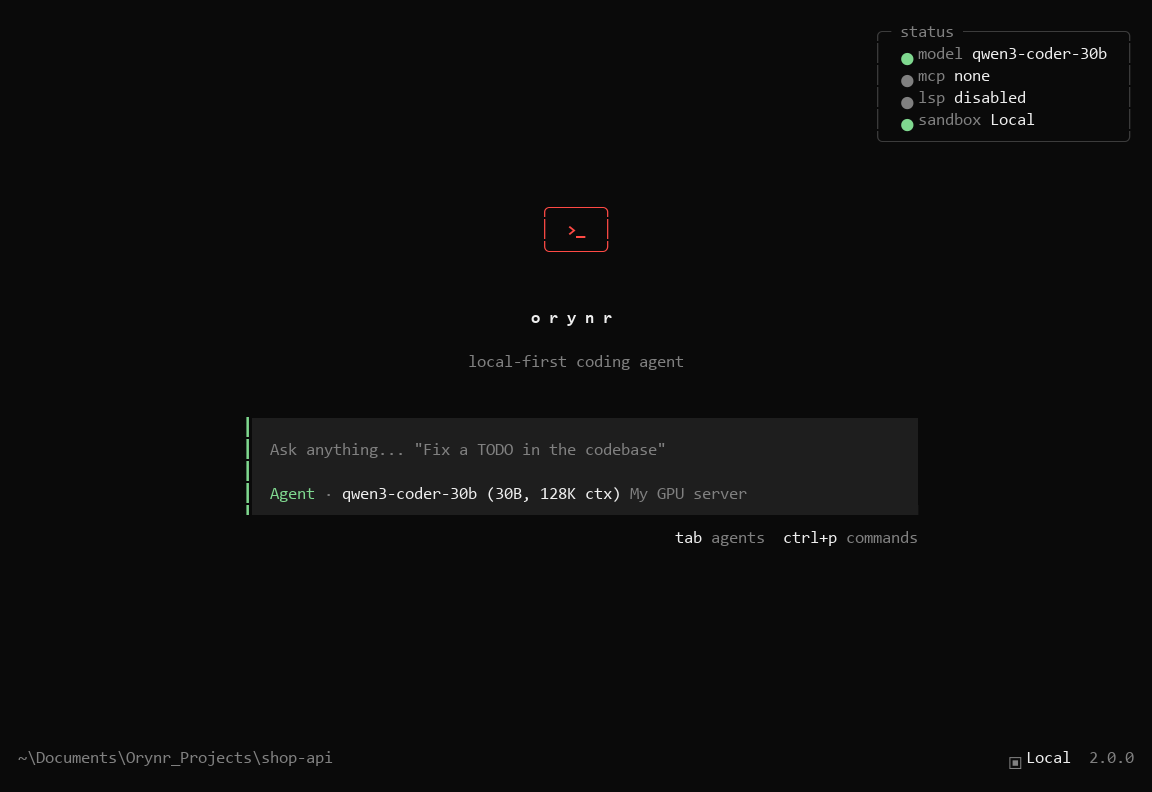
Connecting a model
Orynr Code doesn't come with an AI model; you choose one. It can be a cloud provider with your own key, or a model server you run yourself.
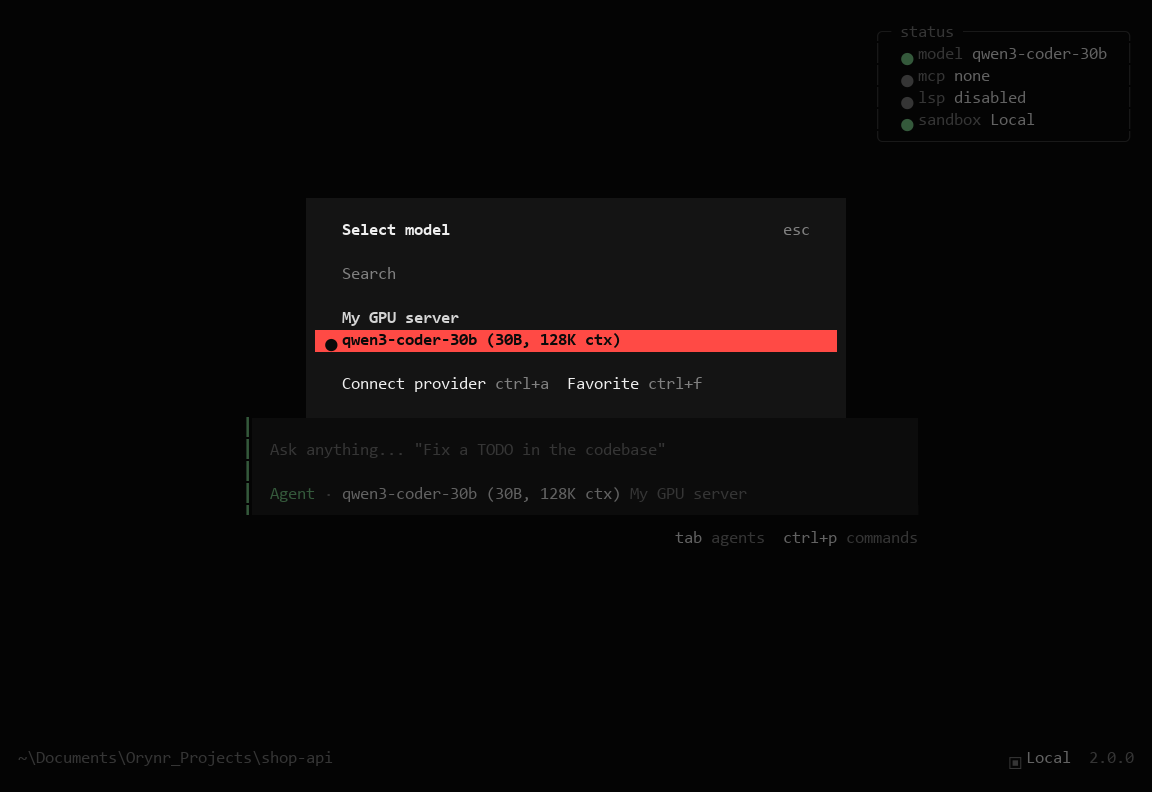
- Open the model picker with ctrl+alt+o (or
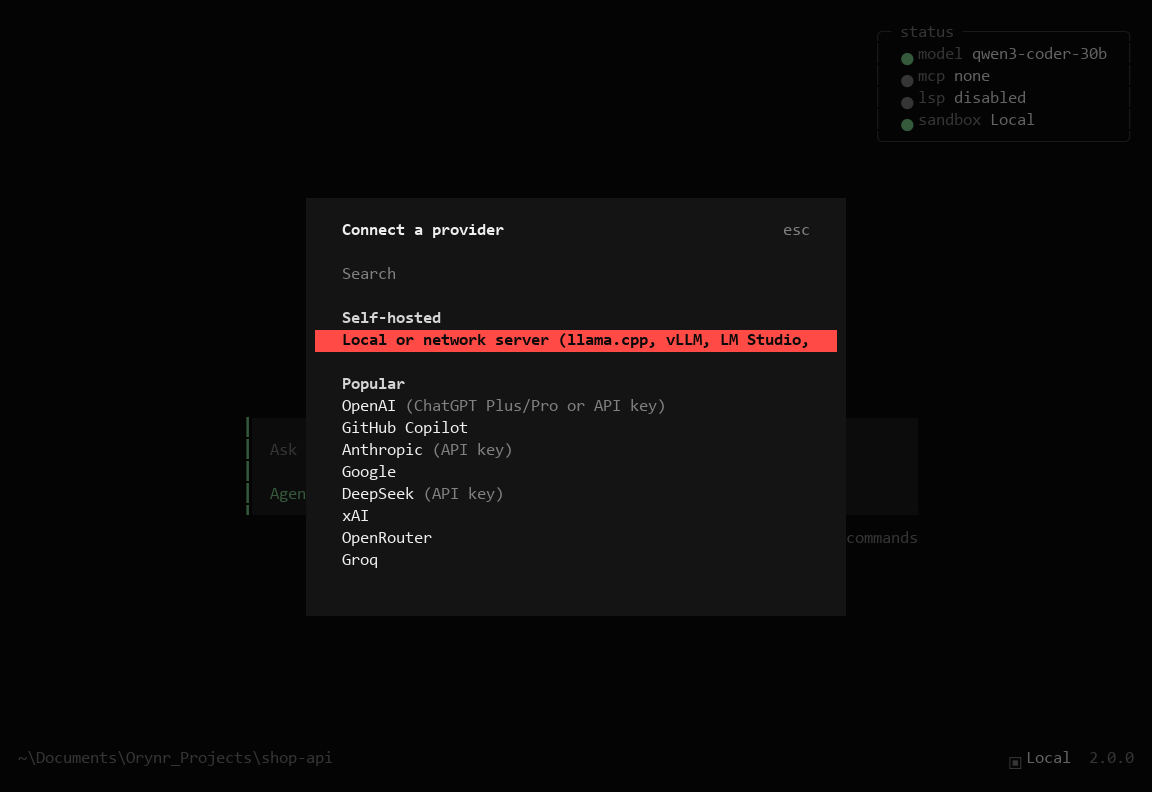
/models). - Press ctrl+alt+a for Connect a provider (or
/connect). - For your own server, pick Local or network server (top of the list). For a cloud service, pick it from the list and paste your API key.
- Choose a model from the picker. It shows up at the bottom of the prompt.
See Cloud providers and Your own model server for details.
Keys & commands
Every shortcut is ctrl+alt plus a letter. Not sure? Type /help: it lists every command
with its shortcut and you can search it. The bottom line of the screen reminds you: /help command for help.
| Press or type | To… |
|---|---|
| Enter | Send your message (shift+Enter for a new line) |
| Esc | Stop what it's doing right now |
/help | Every command and its shortcut, searchable |
| Tab / shift+Tab | Switch agent (Agent, Chat, Conversation, Research…) |
| ctrl+alt+o | Pick a model (F2 jumps to the next recent one) |
| ctrl+alt+v | Think mode on local models that support it |
| ctrl+alt+n / ctrl+alt+l | New chat (asks for the folder) / list chats |
| ctrl+alt+z | Watch the helper agents working |
| ctrl+alt+p | Send the helpers that are running to the background |
| ctrl+alt+b | Show or hide the side panel |
| ctrl+alt+u / ctrl+alt+r | Undo / redo the last message and its file changes |
| ctrl+alt+y | Copy the last answer |
| ctrl+alt+e | Write your message in your own editor |
| ctrl+alt+c | Condense a long chat now |
| ctrl+alt+s / ctrl+alt+t | Status / themes |
| ctrl+alt+k | A panel with every shortcut for where you are |
/sandbox | See or change the project's mode (Docker / Docker shared local / Local) |
/mcps | Tool servers and the built-in tools: add, switch on or off |
/keys | Saved keys and addresses for the built-in tools (encrypted) |
/knowledge | Your knowledge base: where it is and what's in it |
/permission | Change how often it asks before acting (incl. Full access) |
/context / /usage | How full the model's memory is / tokens, time and cost |
| ctrl+c or ctrl+alt+q | Quit |
Inside the input box the usual text keys work as in any editor (ctrl+a/ctrl+e start/end of line, ctrl+w delete a word, arrows, Home/End).
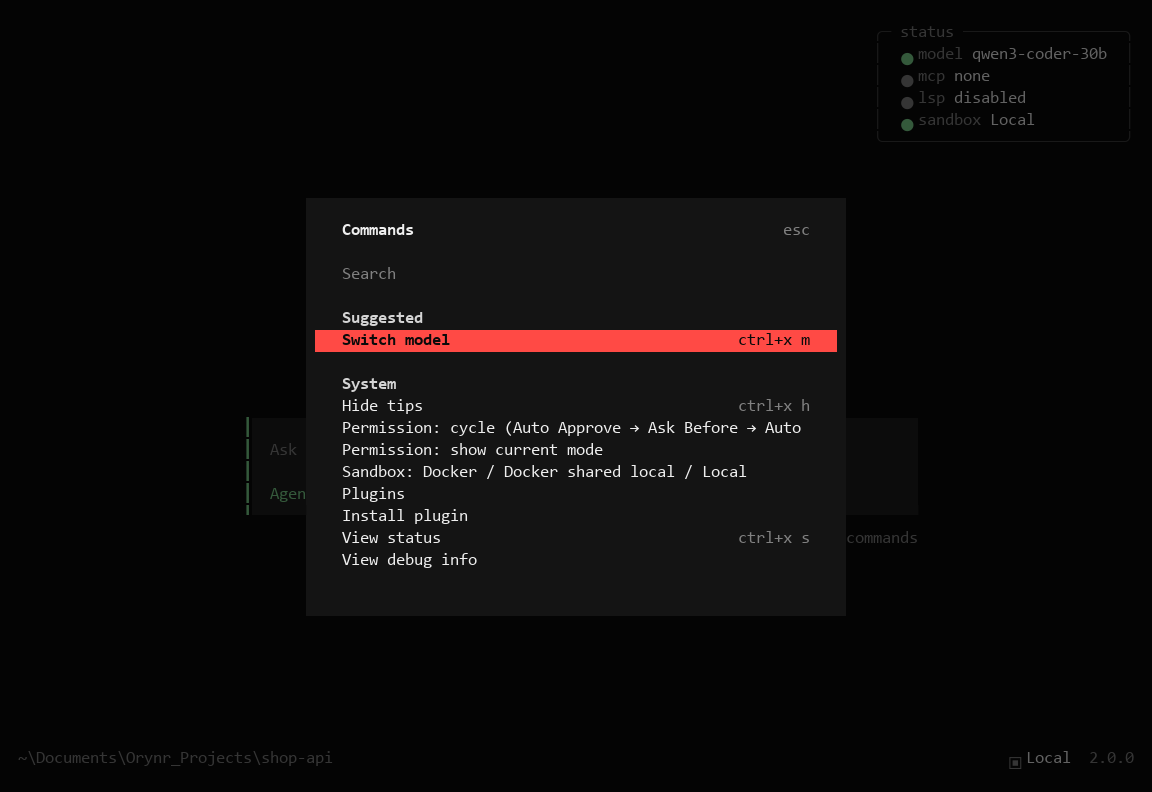
/help opens the list of every command. Type to search it./help for those commands, or change a key in
%USERPROFILE%\.config\orynr\tui.json under keybinds.
The agent team
The default Agent (Orynr) does the work itself, with every tool: it reads and edits files, runs commands, uses the built-in tools, and checks its own work. For bigger jobs it can start helpers that work alongside it in the background and always report back. Press Tab to pick a mode yourself.
Agent Default
Hands-on with every tool. Plans, builds, tests, and starts helpers when a job is big. Best for most requests.
Chat
A coordinator with no tools of its own: it hands each piece to the right specialist and reports back.
Conversation
Just talk. It never touches your files or runs anything.
Research & Thinking
Investigate the web and your code, or reason through hard problems. Read-only.
Auditors
Code Analyzer, Risk Analyzer and Anomaly Reviewer find bugs, risky changes, leaked secrets and leftovers. Read-only.
More
Ralph (a relentless finisher for a spec), Understanding (explains a codebase) and Mapping (writes the project map).
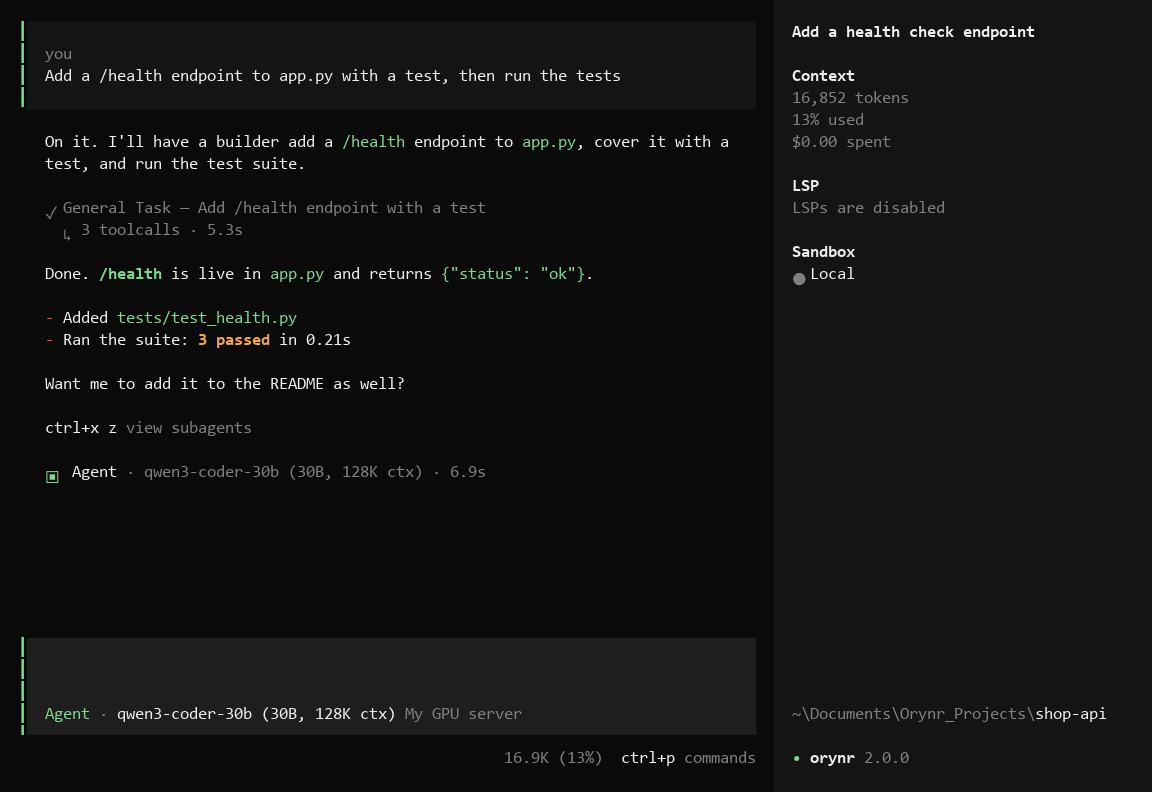
Talking while it works
You don't have to wait. Type a new message while the agent is busy: it pauses, it doesn't stop. It finishes the step it is writing, the actions it had already decided and the command that is running, then reads your message and answers it. Nothing it did is thrown away or done twice. Helpers keep working in the background and report when they're done.
If the model hadn't started answering yet (for example it was still waiting for a busy server), your message is read straight away.
Press Esc to stop everything at once.
Approvals & your folder
Before it runs a command or changes a file, Orynr Code asks. Here's how to answer.
- Allow once: just this action.
- Allow always: this kind of action from now on. The screen lists exactly what that covers before you confirm: for a command it's the program (for example
git status *, which does not includegit push), for file edits it's any file. - Reject: it won't do it. You can tell it what to do differently.
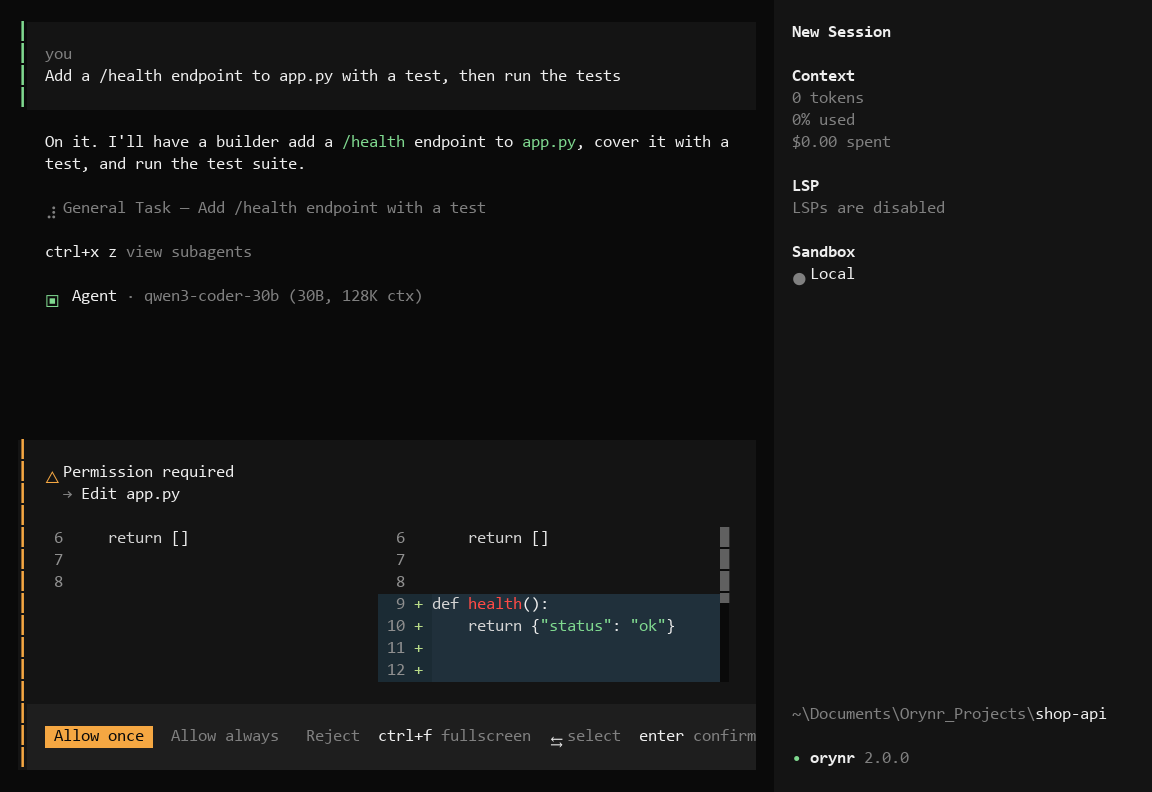
“Allow always” never lets a chained command slip through: cd src && rm -rf build still asks unless every part of it was allowed, and a command hiding another command inside it only runs as exactly approved.
The project folder rule
- Inside the project folder the agent reads and writes freely (within your approval setting).
- Reading anything outside it needs your OK once per chat (Allow for this chat).
- Changing anything outside it, or running a command that names an outside path, is blocked.
How often it asks
/permission switches between Ask Before (start here), Auto Approve,
Auto Decline and Full access.
Reviewer & to-do list
While you work, a reviewer checks what the agent did against what you asked, its own to-do list and what it said it would do, and hands it whatever was missed. The agent sees its open to-do items and the reviewer's notes with every message, whichever agent you're on, so nothing quietly gets dropped.
- The reviewer works between the agent's steps, never on top of them, so it doesn't slow your chat down on a single-GPU model server.
- Items that need you (a password, a decision) are listed separately as waiting on you; the agent mentions them once instead of retrying.
- The side panel shows the current to-do list and the reviewer's open items.
Undo & history
- Undo: before each message, your project files are snapshotted.
/undoputs them back to that point (it works even if the project doesn't use git);/redogoes forward again. - Sessions: every chat is kept per project. ctrl+alt+l lists them.
- Long chats are condensed automatically near the model's limit, so they never overflow.
/compactdoes it now. - Share a chat as a read-only page served from your own machine (
/share,/unshare), or/exportit.
Long jobs & retries
Orynr Code is built so a job never dies or goes quiet halfway.
- Long commands are fine. Installs, builds and test runs may take up to 30 minutes.
- “Timed out” isn't “failed”. If something is still running at its limit, it's stopped along with everything it started, and the agent checks what actually happened (is Python installed now? do the files exist?) before doing anything again.
- A model that doesn't answer is tried again, with a pause between tries, and you see it on screen: “trying again, attempt 2 of 6”.
- After 6 failed tries it tells you plainly what it was doing and what it found, instead of looping.
- A busy model server (for example a GPU box finishing someone else's job) is waited on for up to 30 minutes, with a “the model server is busy” line. Esc stops the wait any time.
- While your own server reads a long chat you see how far it has got: “Reading the conversation — 32,000 of about 41,000 tokens”.
Switching model on a long chat
A model can't use another model's memory of a chat, so the model you switch to has to read it. To keep that quick, the new model gets
all your messages, all its replies, every action and the latest work in full, while older tool results (file dumps, logs) become
one-line notes. Nothing is deleted: the model brings any of them back with recall when it needs it. On a real 300,000-token chat, the new model read about 41,000.
Cloud providers
Orynr Code knows 75+ providers and thousands of models, including OpenAI, Anthropic, Google, DeepSeek, xAI, OpenRouter, Groq, Mistral, GitHub Copilot, Azure and Amazon Bedrock.
- ctrl+alt+o → ctrl+alt+a (or
/connect) → pick the provider. - Paste your API key (or sign in, where the provider offers it).
- Pick a model.
Your own model server
Run your own model on this PC or another machine on your network? llama.cpp, vLLM, LM Studio, Ollama and any OpenAI-compatible server work.
- ctrl+alt+o → ctrl+alt+a → Local or network server (first in the list).
- Type the address, for example
192.168.1.50:8080.http://and/v1are added for you. - Give it a name, like My GPU server.
- Type its API key if you started the server with one; otherwise leave it empty.
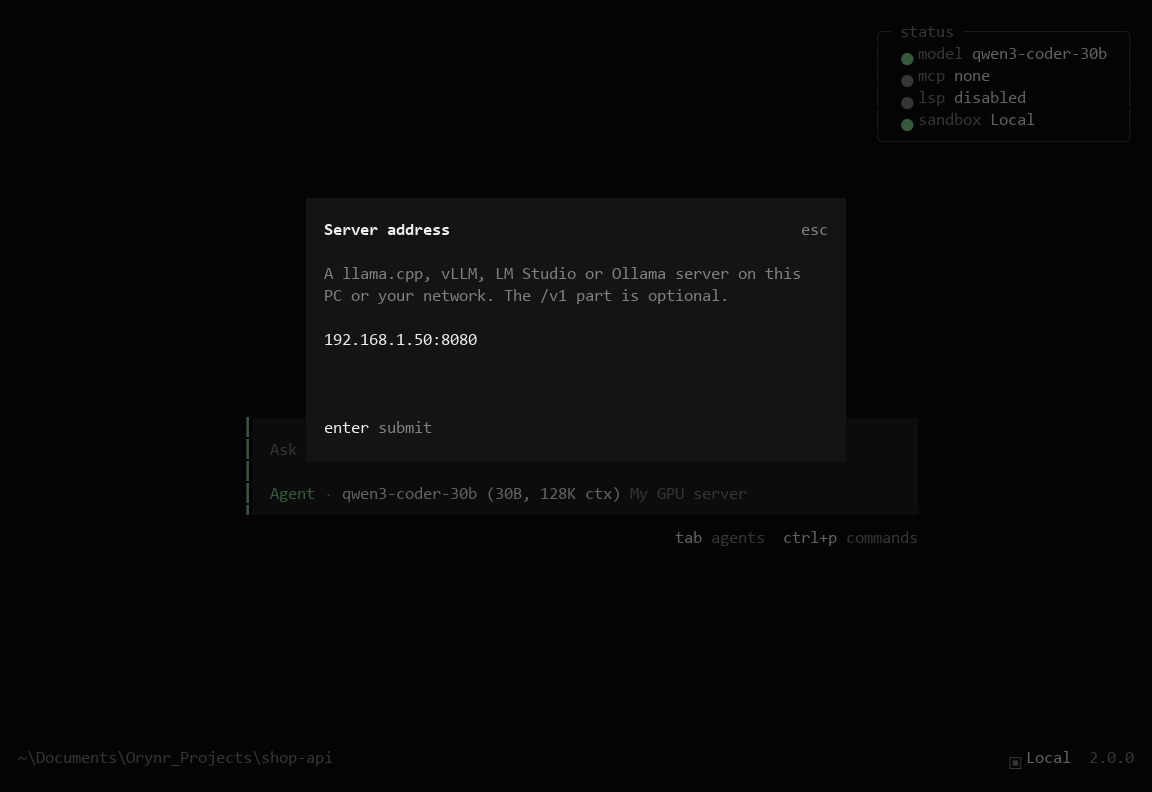
http:// and /v1 are optional.Orynr Code asks the server what it's serving before saving anything, and tells you plainly if the address, port or key is wrong. It then lists the model that's really loaded, with its size and context length. Adding the same address again updates it.
Think mode
For local models that support it, press ctrl+alt+v (or /variants) to switch between
normal, think and think harder. The model's reasoning streams live in a
collapsible Thinking block, then the answer.
Orynr Code gives the model room to think: up to 4,096 tokens per step in think and 16,384 in think harder, even if your server was started with a smaller thinking limit (a limit that cuts thoughts off mid-sentence makes a model repeat itself).
Pictures & documents
- Documents: the agent reads PDF, Word, Excel and PowerPoint files directly (a scanned PDF is looked at page by page as pictures).
- Pictures: drag one into the terminal or paste it with ctrl+v. A model that can see images looks at it directly.
- A model that can't see images? Add a picture helper in your settings file
(
%USERPROFILE%\.config\orynr\orynr.jsonc):"vision_model": "provider/model", any model that can see. It describes each picture for your main model. Orynr Code notices on its own when a model refuses pictures, and remembers it.
Projects & folders
Each project lives in its own folder, normally Documents\Orynr_Projects\<name>, with its own chats, settings and memory. You can also work in any existing folder by naming it in a new chat, or with ora C:\path.
A whole drive, the Windows folder, program folders and your home folder itself can never be used as a project.
Sandbox modes
Every project runs in one of three modes. /sandbox shows the current one and switches it; Orynr Code moves the files for you, never overwrites anything, and undoes a move that fails part-way.
Docker
The project's files sit in their own folder and only that folder is given to a locked-down container. Every command runs inside it. The container reaches the internet only: not your PC, not your home network.
Docker shared local
The same locked-down container, working directly on your project folder.
Local
Commands run straight on your PC. Fastest, and the default when Docker isn't installed.
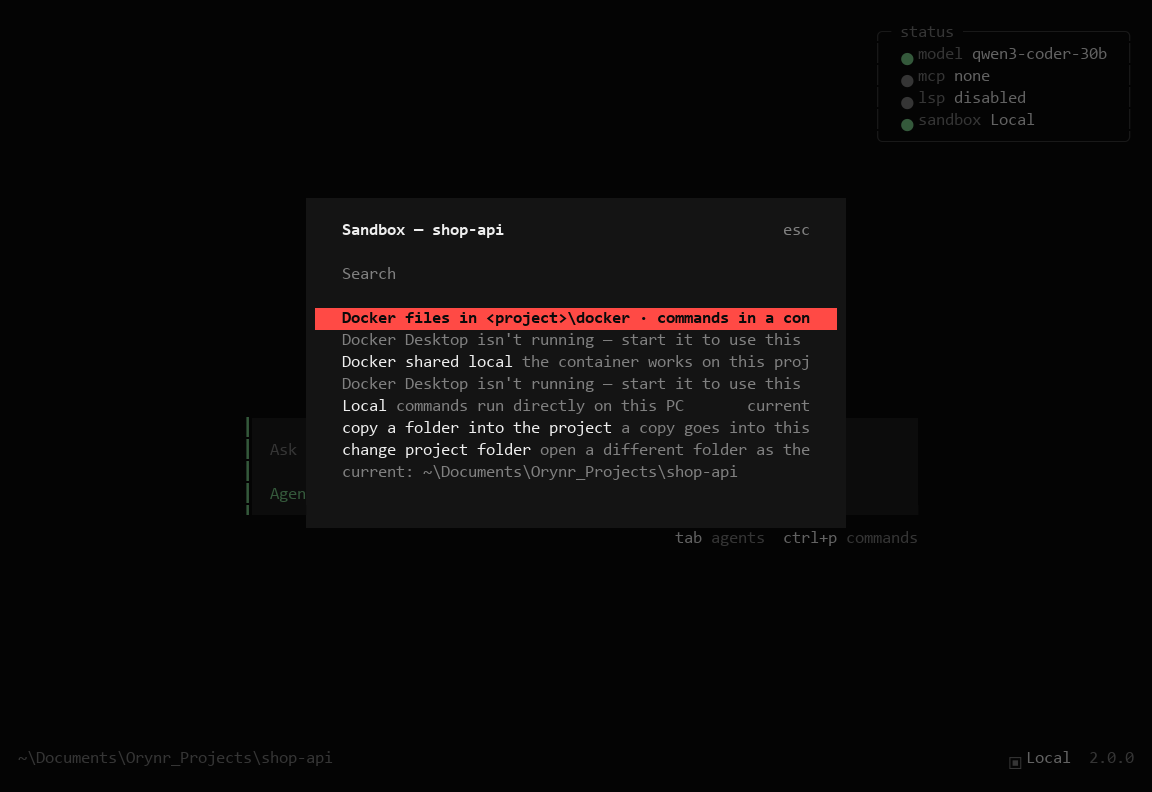
/sandbox. Here Docker Desktop isn't running, so the Docker modes say so and the project stays Local.- Docker modes need Docker Desktop. New projects start in Docker mode when Docker is running, and in Local mode otherwise.
- Copy a folder in: from
/sandbox, pick any folder on your PC to copy into the project. The AI itself can never reach your other folders. - In Docker modes nothing from the project runs on your PC: background jobs and the project's checks run inside the container, and tools that would act on your PC (system or network monitor, smart home, the browser, Blender) politely refuse there. Code intelligence and the app preview are off; build, test and run inside the container instead.
For quick snippets there's also a separate safe code runner (Python, JavaScript, Ruby, PHP, Lua) that can't touch your machine at all.
Built-in tools
These come with Orynr Code: always on, nothing to install or start. The agent picks them by itself when a
job calls for one. /mcps lists them under Built into Orynr.
| Tools | What they do |
|---|---|
| Excel, Word, PowerPoint, PDF | Read, create and edit workbooks (formulas, charts, formatting), documents, decks and PDFs; convert between formats |
| Code & git | Search code, git status/log/diff/blame, symbols, TODOs, dependencies |
| Project checks | Find and run the project's build, lint, type-check and tests, and report each step |
| Background jobs | Start long commands (servers, watchers, builds), follow their output, send input, stop them |
| Browser | Open your app in a real browser: click, type, read the page, screenshots, console errors |
| Web & APIs | Fetch pages, search, call any HTTP API (keys from Saved keys) |
| Safe file operations | Copy, move, delete to a restorable trash; replace across many files with a preview and undo |
| Databases | SQLite, PostgreSQL and MySQL: tables, queries, samples (changes ask first) |
| DevOps | Docker containers and logs, Kubernetes, services, TLS certificates, DNS |
| This PC & network | CPU, memory, disks, processes; interfaces, ping, ports, traceroute, DNS |
| Smart home | Philips Hue, Home Assistant, MQTT devices, device discovery |
| Productivity | Email, calendar and a personal task list |
| Markets | Stock and crypto prices, history, fundamentals, currency conversion |
| Exact utilities | Calculator, statistics, dates, units, hashes, encodings, regex |
| Notebooks | Read, edit and run Jupyter notebooks |
With hundreds of tools available, the model only sees a one-line list and loads a tool's details when it needs them, so it stays fast.
Knowledge base
Put your own documents in Documents\Orynr_Knowledge: notes, specs, manuals, PDFs, Word, Excel,
PowerPoint, text or code. Orynr Code notices new and changed files by itself and searches them whenever a
question might be answered by them, and tells you which file the answer came from.
/knowledgeshows where the folder is and what's in it, and opens it.- Your files are never changed. Orynr's own notes, journal and search index are kept encrypted.
Saved keys
Some built-in tools need an address, a user name or a password: an MQTT broker, Home Assistant, a database,
a web API. Save them with /keys → Save a key, under the name the tool asks for
(for example MQTT_HOST, HASS_TOKEN).
- They're stored encrypted. The AI only ever sees the name, never the value.
- When a tool needs one that's missing, the agent tells you the exact name to save. Never paste a password into the chat.
- Database and web API tools use them as
vault:NAME.
Blender & Unreal Engine
Blender
- Switch on blender in
/mcps(it's off until you need it), then start a new chat. - Ask the agent to “install the Blender add-on”. It puts the Orynr Code bridge into every Blender version on your PC.
- In Blender: Edit → Preferences → Add-ons, search Orynr Code bridge and tick it. It connects by itself; the Orynr tab in the 3D view's side panel shows the status.
The agent can then read the scene and objects, run Blender Python to build, change, animate or render, and take a clean picture of the 3D view to check its work. The bridge only listens on your own PC and needs a private key that only Orynr Code has; it uses no outside services.
Unreal Engine
Switch on unreal-engine in /mcps, and make sure Unreal Engine is running with its
MCP service enabled. Orynr Code then loads its Unreal skills (Blueprints, materials, animation, levels and more)
and works in the editor directly. It looks up version-specific details in the documentation instead of guessing.
MCP tool servers
MCP servers give the agents new tools: a database, GitHub, your company's API. Once connected, every agent can use them.
- Open the MCP screen:
/mcps→ + Add a server. - Choose A web address (remote server) or A program on this PC (local server).
- Remote: paste the address, often ending in
/mcpor/sse. Local: type what starts it, likenpx -y @modelcontextprotocol/server-github, or the path to a server file. Paths with spaces are fine. - Give it a name, and a key if it needs one: for a web address, a token (sent as Authorization: Bearer, or type
Header-Name: valuefor another header); for a program,NAME=value, for exampleGITHUB_TOKEN=….
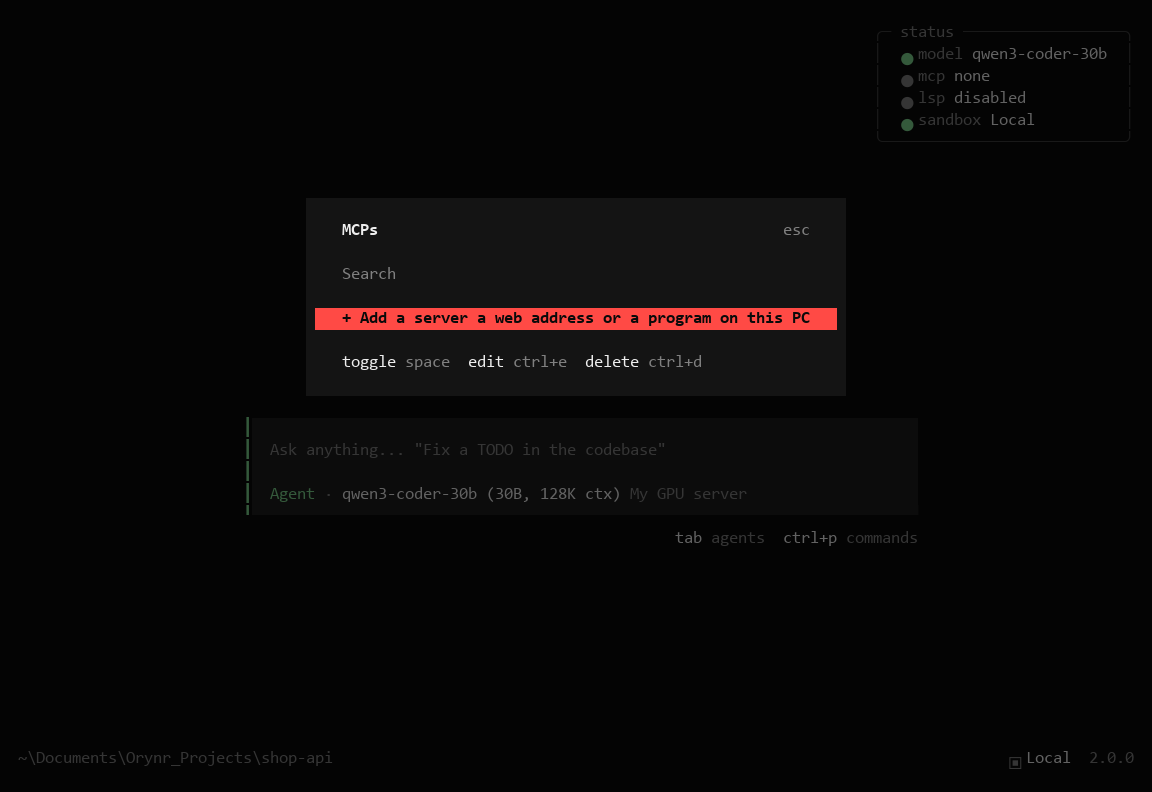
/mcps. Your servers are listed here, then the built-in tools; space switches one on or off.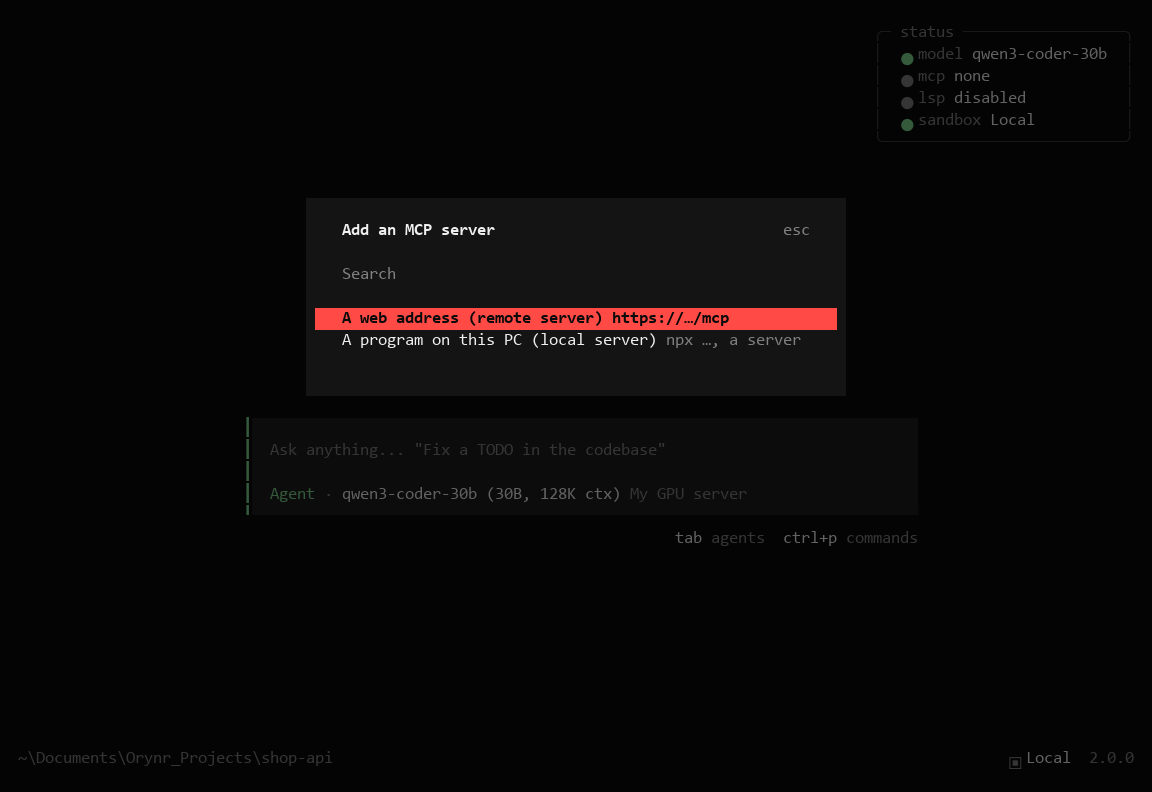
Orynr Code connects and lists the server's tools before saving it, and says plainly what went wrong if it can't. Keys are stored encrypted, never in a settings file. A server on your own PC or network needs one extra “Allow it, it's mine”.
npx servers need Node.js installed; servers written in Python need Python installed. Web-address servers need nothing extra.
Skills, plugins & memory
- Project memory. The agents save what they learn about a project (decisions, fixes, conventions) and a map of the codebase, and each new session starts with a short since last time brief, including anything left open on the last chat's to-do list. Both are stored encrypted in the project's
.orynrfolder./memoryshows it;/rememberadds to it. - Project instructions. Put guidance for the agents in
ORYNR.md(orCLAUDE.md) in your project./initwrites one for you by analysing the project. - Skills (
/skills) add know-how. Orynr Code uses them by itself when a request matches one, as guidance rather than orders. - Plugins can add tools, hooks and permission rules. Custom agents can be added in settings, or created by the Agent itself.
- Trust. A project's own tools, skills and settings only load once you trust the project (
/trust).
How Orynr Code protects you
Most of this is simply how it's built.
It asks before it acts
Commands and file changes need your approval unless you've allowed that kind of action, and “always” never lets a chained or hidden command through.
A container that can't see your PC
In Docker mode the project runs in a container that reaches the internet and nothing else, as an ordinary user with special privileges removed.
Everything can be undone
Every message snapshots your project first, so /undo can always put your files back.
Keys stay encrypted
Model and MCP keys are stored with AES-256, locked to your Windows account, never in plain text.
Tamper-evident software
The setup and every program are signed by Orynr LLC, and each release has a published SHA-256 fingerprint.
Nothing runs where it shouldn't
System folders, whole drives and your home folder can't become a project, and a project's own tools only load once you trust it.
It stays in your project
Outside the project folder it may only read, once you allow it for the chat; changing anything outside is blocked unless you turn on Full access.
Secrets never go through the chat
Passwords and tokens for the built-in tools are saved with /keys; the AI only sees their names. Text from web pages and files is treated as data, never as instructions.
Privacy & your data
- Runs on your computer. Your projects, chats and settings stay on your machine.
- No telemetry, no analytics, no account. Orynr Code sends nothing to Orynr.
- Data leaves only where you send it. Your messages, and the files needed to answer them, go to the model provider you chose. A web search, a page it fetches for you, or a tool server you connected get what they need. A server you run yourself keeps everything in-house.
- Your work is yours. You own the code you create with Orynr Code.
Troubleshooting
Fixes for the things people actually hit. Still stuck? Ask the Agent to diagnose it.
Typing ora says it isn't recognized
Open a new Command Prompt or PowerShell window. A window that was already open before you installed doesn't know about ora yet. Also check the spelling: it's ora.
“Windows protected your PC” when installing
Click More info → Run anyway. Windows shows this for software it hasn't seen many downloads of yet. To be sure your copy is genuine, compare its SHA-256 with the one on the download page (see Installing).
“The model provider rejected the credentials”
The API key was refused by the provider (a 401). Check it's the right key for that provider, still active, and that the account has credit, then add it again from ctrl+alt+o → ctrl+alt+a. A refused key isn't retried, because it would fail the same way.
My own model server isn't found
- “Nothing answered”: check the address and port, that the server is running, and that it listens for other machines (start it on
0.0.0.0, not only127.0.0.1) with its port allowed through the firewall. - “Refused the API key”: the server was started with a key; type the same one.
- “Not an OpenAI-compatible model server”: something answered, but on the wrong port.
The first answer is very slow
Large local models load on the first request, which can take a while. The screen says so while it waits. Orynr Code also has your own model server read its instructions in the background at start-up; if you send a message during that, it simply waits for the model and is answered sooner than without it.
A shortcut types a character instead
On some non-US keyboards ctrl+alt works as AltGr. Use /help to run the command, or set another key in tui.json under keybinds. Old shortcuts like ctrl+p and ctrl+x … are gone: everything is ctrl+alt plus a letter.
The model repeats itself or gives up halfway through its thinking
Some model servers are started with a small thinking limit that cuts thoughts off mid-sentence. In think mode Orynr Code asks for more room (4,096 tokens per step, 16,384 in think harder); if it still happens, raise or remove the limit on your server (for llama.cpp, --reasoning-budget).
It says “trying again, attempt 2 of 6”
The model didn't answer or couldn't be reached for a moment, so Orynr Code is trying again with a pause in between. If all 6 tries fail it tells you plainly; check the model server or your internet connection.
It keeps asking for approval
Choose Allow always for the kind of action you're happy with. It covers that program (or any file, for edits) from then on. A different program, or a chained command with a part you haven't allowed, still asks, on purpose. To stop the asking entirely, /permission → Auto Approve.
“No project yet”: it won't write or run anything
The chat is still in the projects folder. Agree a name for a new project, or name an existing folder (“work on C:\…\MyApp”), and it carries on inside that project.
“Please make sure Blender / Unreal Engine is running”
Orynr Code couldn't reach it. Start the program; for Blender make sure the Orynr Code bridge add-on is ticked in Preferences → Add-ons, for Unreal that its MCP service is enabled. See Blender & Unreal.
A tool says something is “not set up yet” or names a missing key
Save that exact name with /keys → Save a key (for example MQTT_HOST or HASS_TOKEN). Don't paste passwords into the chat. See Saved keys.
“Not available in this Docker project”
That tool would act on your PC, and a Docker project never touches your PC. Let the agent do it inside the container, or switch the project to Local with /sandbox if it really needs your PC.
It wants to read or change a file outside my project
Reading outside the project asks once per chat. Changing anything outside is blocked on purpose; copy what's needed into the project, or turn on Full access in /permission (after reading its warning).
Docker mode says Docker isn't running
Start Docker Desktop and try again, or switch the project to Local with /sandbox. The first command in a new Docker project takes a little longer while the container is prepared.
An MCP server won't connect
- “That program wasn't found”: install what it needs (Node.js for
npx, Python for.pyservers) and check the command. - “Refused the key”: check the token, and the header if the server expects one other than Authorization.
- “Not an MCP server there”: check the full address; it often ends in
/mcpor/sse.
The Agent calls me by the wrong name
That comes from the project's memory, not from Orynr Code itself. Say “forget calling me …”, or see and edit it with /memory.
Still stuck?
- Ask the Agent: “diagnose why X isn't working.”
/statusshows the model, the tool servers and the sandbox at a glance.- Ask on the forum, or email info@orynr.com.
Frequently asked questions
Is Orynr Code really free?
Yes, free to use, including for commercial work, when downloaded from orynr.com. You pay a cloud AI provider only if you choose one; a model you run yourself costs nothing extra.
Which AI models can I use?
Any of 75+ cloud providers with your own key, or your own server: llama.cpp, vLLM, LM Studio, Ollama or anything OpenAI-compatible, on this PC or your network.
Does it work offline?
It needs a reachable model. With a model server on your own PC or network, no internet is needed for the AI. Cloud models, web search and online tool servers need internet.
Can I keep typing while it works?
Yes. Your message pauses the agent rather than stopping it: it finishes what it was doing, then answers you. Esc stops everything at once.
Is my code sent to Orynr?
No. There's no telemetry and no account. Your code only goes to the model provider you choose, and only what's needed to answer you.
Do I need Docker?
No. Without Docker, projects run in Local mode. Install Docker Desktop if you want the internet-only container, then switch with /sandbox.
Mac or Linux?
Windows 10 and 11 (64-bit) for now. There's no Mac or Linux installer yet.
What's the difference between Agent, Chat and Conversation?
Agent does the work itself with every tool and starts helpers for big jobs. Chat has no tools of its own: it hands work to specialists and reports back. Conversation only talks and never touches anything. Start with Agent; switch with Tab.
Where did my MCP servers like network monitor or Excel go?
They're now built into Orynr Code itself: always on, faster, nothing to start. /mcps lists them under Built into Orynr. Servers you added yourself are listed above them as before.
How do I update?
Download the new setup from orynr.com and run it over the old one. Your settings, keys, projects and chats are kept.
Who is responsible for what it does?
Orynr Code is a tool that acts on your instructions and approvals, so what it does is your responsibility. AI output can be wrong, so review its work before relying on it, keep backups, and use the sandbox for anything you don't fully trust. The licence you accept when installing has the details.
Who makes Orynr Code?
Orynr LLC, Florida, USA. Contact: info@orynr.com.
No help topics match that search. Try a different word, or ask the Agent.